




training in the latest cloud technologies.
Solutions for Ed-Tech →

to schools, colleges, and universities globally.
Solutions for Educational Institues →

hands-on demos, POCs, and workshops to boost
market outreach and sales.
Solutions for ISVs →

that are feature-rich and easy on the pocket.
Solutions for Training Providers →

growth with CloudLabs-enabled experiences.
Solutions for Enterprises →



Get a Demo →
Get a Demo →
Get a Demo →
Get a Demo →
Get a Demo →





5M
Hands-on LabsProvisioned For
Training

David Trinh
Academic Program Manager, School of IT Administration and Security, Seneca Polytechnic
We are incredibly pleased with our experience using CloudLabs by Spektra Systems. Their responsiveness and support have been nothing short of outstanding. They have demonstrated remarkable flexibility in accommodating our unique processes and challenges, resulting in a seamless and highly productive collaboration. Thanks to CloudLabs, we have successfully delivered Azure-related courses to a substantial number of students in various programs. Our collective satisfaction with their services has been beyond measure, and we look forward to continuing this fruitful partnership to further grow in the cloud industry in the future.
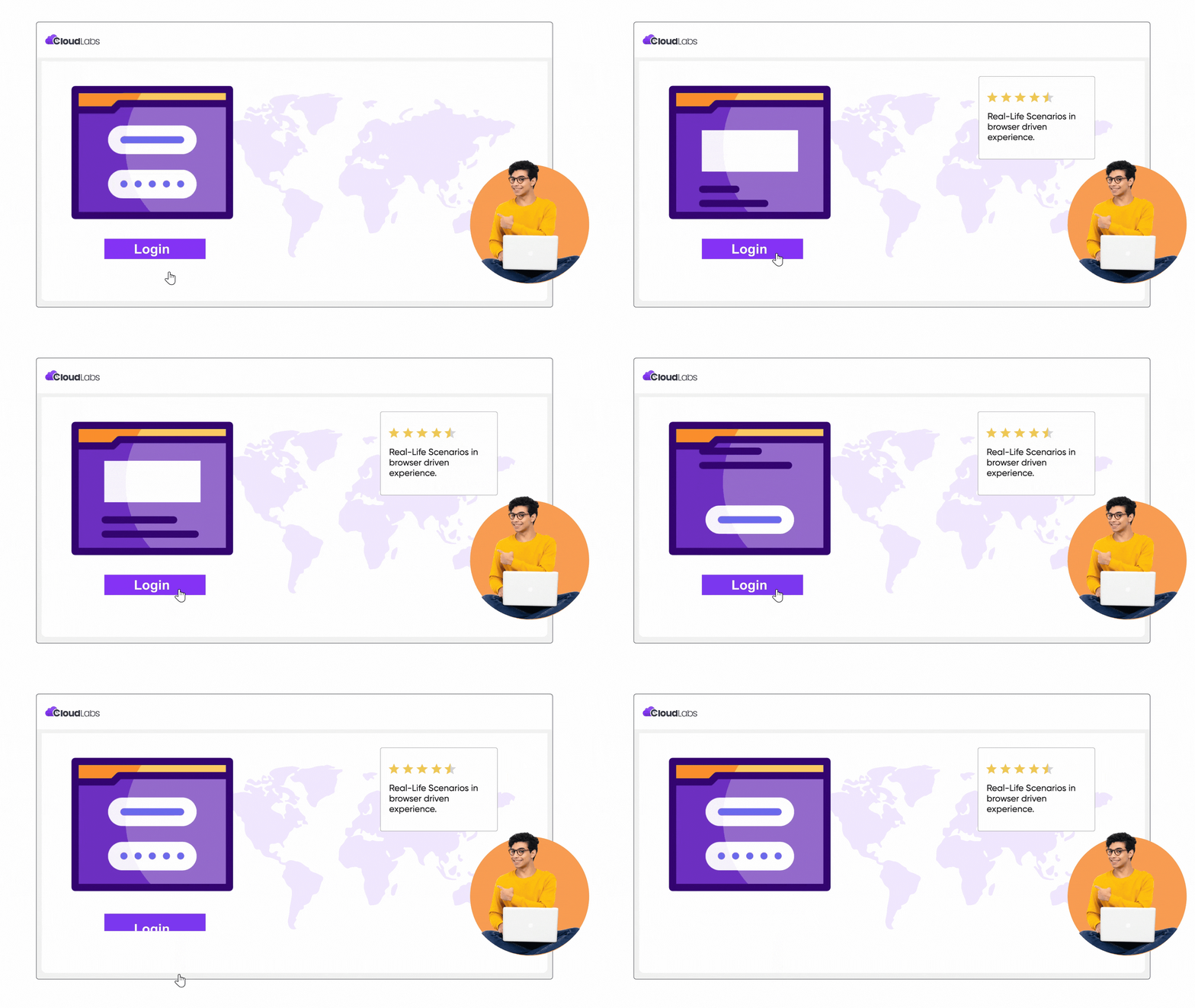
Access from Anywhere
Access virtual labs available across the globe with just a modern browser and an internet connection. No download required.
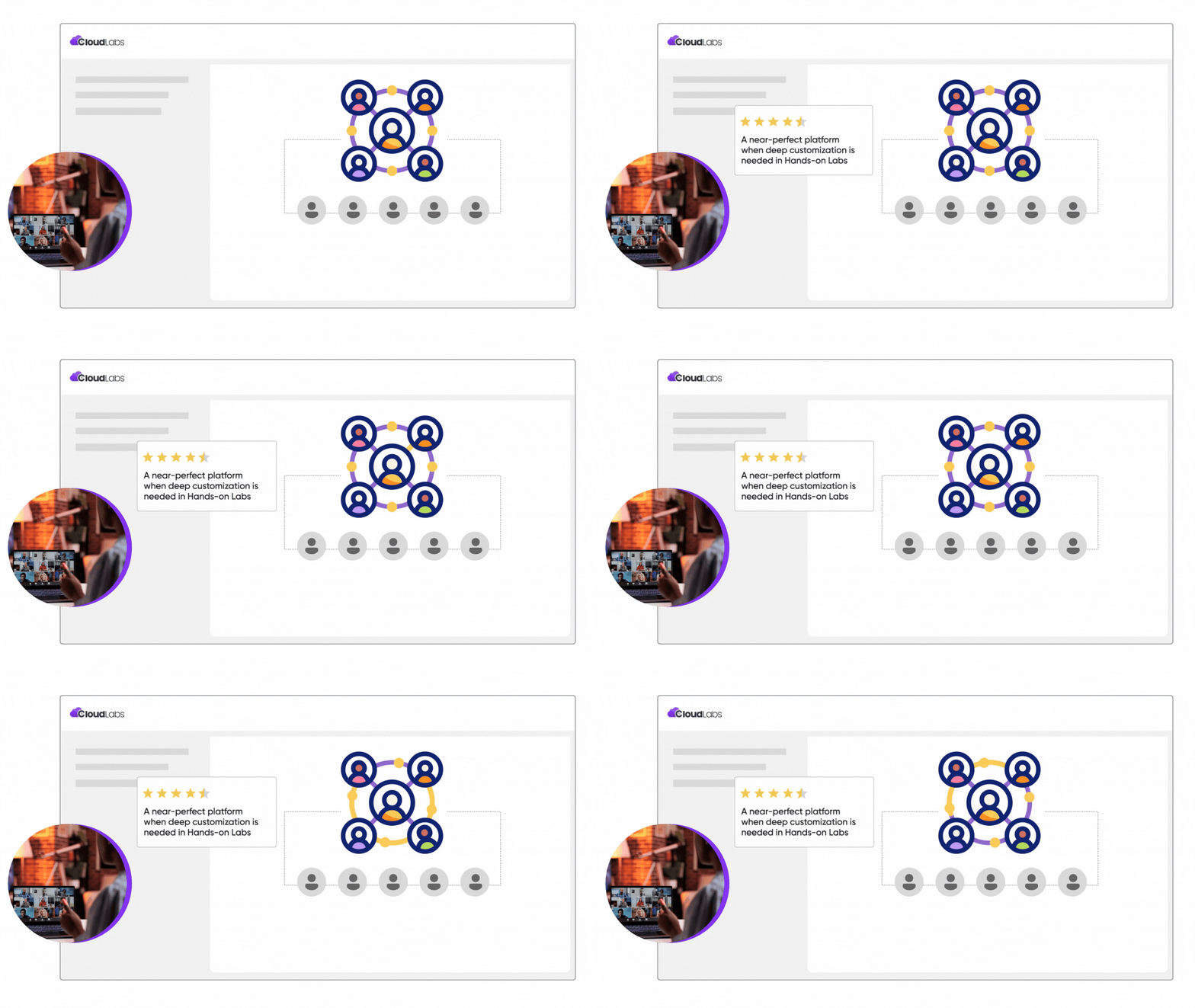
Collaboration
Effective collaboration among participants, instructors, proctors in real-time.
Instructor Control
Instructors can manage the show effectively, the way it happens in physical classrooms.

24*7 Live Support
Experience 24*7 premium quality support from our dedicated team, ensuring a seamless experience at every step.